How to edit the text of a PDF on your Android phone
By Toolverse Labs, makers of PDF Tools · · 2 min read
Quick answer
To edit PDF text on Android, open the PDF in PDF Tools, tap Edit text, tap the line you want to change, type the new words and tap Done, then Save. To change a word everywhere, use Find and replace. It is free and works offline.
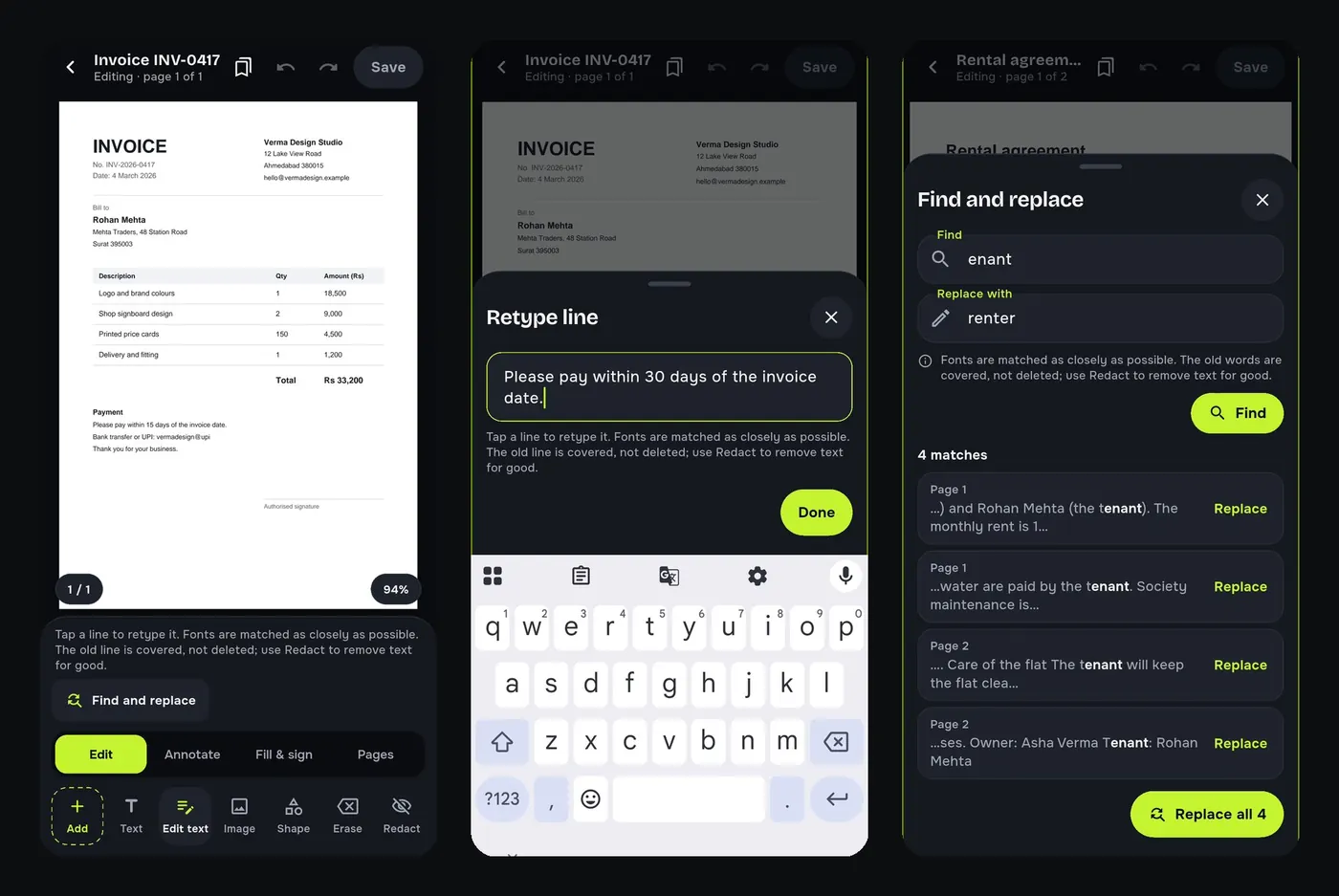
Someone sends you a PDF with one wrong date, a misspelt name or an old price. Most phone apps only let you draw or type on top of the page, and asking for a corrected file can take a day. PDF Tools changes the text of the PDF itself, on your phone, in under a minute.
How to edit one line of a PDF
- Install PDF Tools from Google Play and open it.
- Tap Open a PDF to edit on the home screen, or go to Tools → Edit text.
- Choose your PDF. It opens in the editor on the Edit tab.
- Tap the line you want to change. A Retype line box shows its current text.
- Type the corrected words and tap Done.
- Tap Save. The edited copy is saved next to the original, which stays unchanged.
How to replace a word everywhere in a PDF
A rental agreement says “tenant” and you need “renter”, or a company name changed. In the editor tap Find and replace, type the word to find and the word to put in its place, and tap Find. Every match is listed with its page, so you can replace them one by one or tap Replace all.
Will the edited text look the same?
Fonts are matched as closely as possible, and the new words keep the size and the bold or italic style of the text they replace. On most invoices, letters and forms the change is hard to spot. A rare decorative font may be replaced by a similar one.
What else you can change on the page
- Text: add a new text box anywhere.
- Image: add a logo, photo or stamp and resize it.
- Shape and Draw: boxes, arrows and freehand notes.
- Erase and Redact: cover or permanently remove content.
Good to know
- The old words are covered, not deleted from the file. To remove private text for good, use Redact.
- Scanned PDFs are pictures, not text. Run Make searchable first, or add a text box over the old words.
- Everything happens on your phone; the PDF is never uploaded.
Try it on your phone. PDF Tools is free, works offline and needs no account.

Frequently asked questions
Can I edit a PDF on Android for free?
Yes. PDF Tools is free to use, with ads, and its Edit text tool changes the text of a PDF without adding a watermark.
Can I edit a PDF without internet?
Yes. Editing happens on your phone, so it works offline.
Can I edit a scanned PDF?
A scan is an image of text. You can add new text boxes over it, or run Make searchable first so the words can be found and copied.
Does editing change the original file?
No. Saving creates an edited copy and the original PDF stays as it was.
Everything PDF Tools can do
More than 40 tools in one free app, on phones and tablets, in 10 languages. Your files are processed on your phone and never uploaded to our servers.
- Edit: edit PDF text, find and replace, images, shapes, drawing, highlight, links, bookmarks, redact.
- Fill and sign: fill forms, saved details, make a form, sign, certificate signature, stamps and dates, flatten.
- Pages: organise, merge, split, rotate, crop, resize, pages per sheet, page numbers, watermark.
- Convert and scan: scan to PDF, images to PDF, ID card to PDF, OCR, QR scanner and maker, business card to contact, PDF to Word, Word to PDF, PDF to JPG, PDF to text, web page to PDF.
- Protect and shrink: compress PDF, compress photo, black and white, add or remove password, clean hidden data.
- Read, compare and find: reader with night mode, read aloud, translate, compare PDFs, find dates and amounts, print.
- Files and privacy: folders, favourites, recycle bin, app lock, search inside files, batch mode.
See every feature in detail or get PDF Tools on Google Play.
Related guides
How to redact a PDF on Android
Black out phone numbers, e-mails, account numbers and names in a PDF on your Android phone and remove them for good, not just cover them. Free and offline.
Fill and signHow to fill a PDF form on your Android phone
Type into PDF form fields, tick checkboxes and pick options on your Android phone, then save, sign and send the form. Free and offline, no printing.
Fill and signHow to sign a PDF on your phone without printing it
Add your signature to a PDF on your Android phone: draw or type it, place it on the page and share the signed file. Free and offline, no printer or scanner.