How to redact a PDF on Android
By Toolverse Labs, makers of PDF Tools · · 2 min read
Quick answer
To redact a PDF on Android, open it in PDF Tools, tap Redact on the Edit tab, drag over the text or tap Find private details, tick what to remove, then tap Save and confirm Save with redactions.
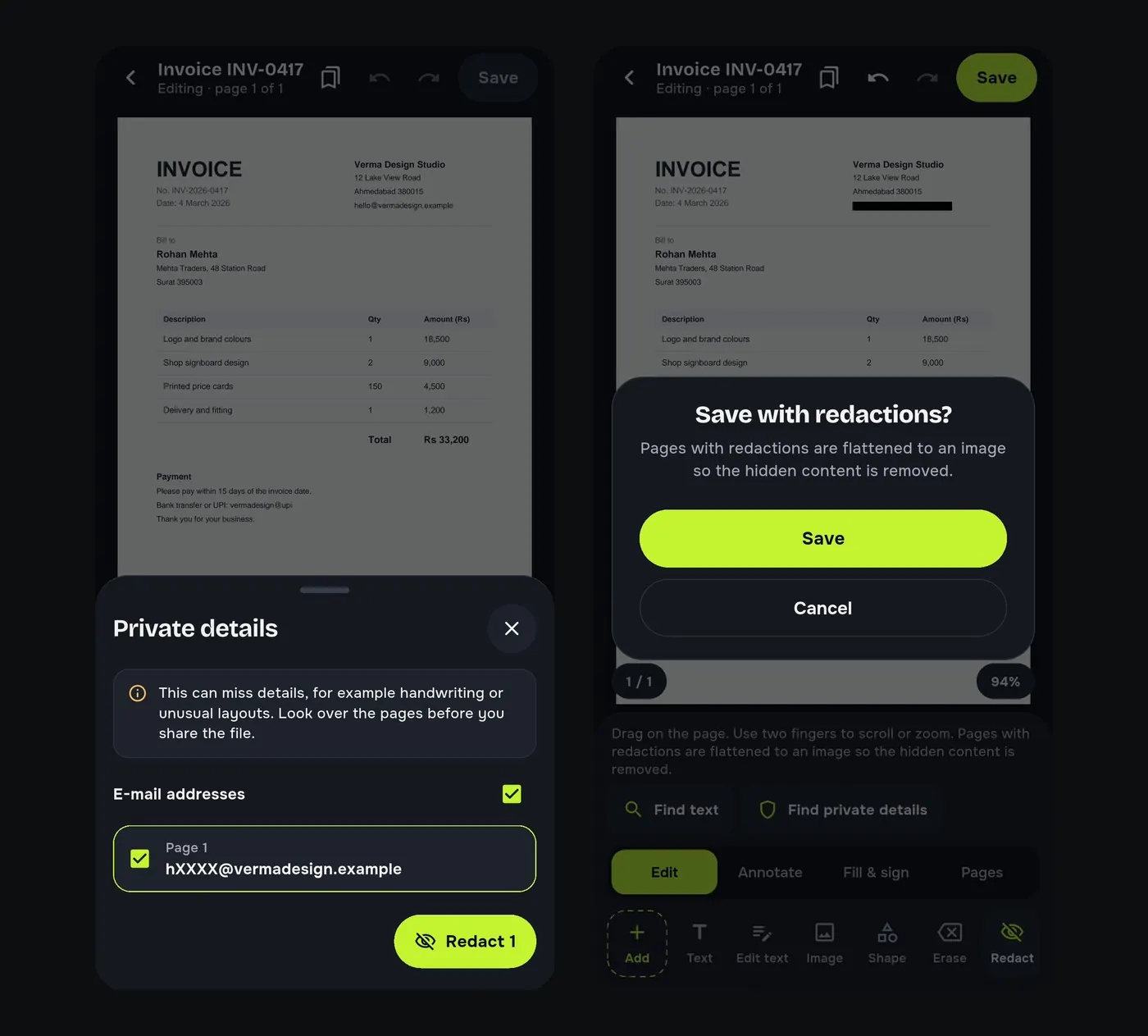
Drawing a black rectangle over a phone number in most apps only hides it: anyone can still select or copy the text underneath. Real redaction removes it from the file.
Steps to redact text in a PDF
- Open the PDF in the editor and tap Redact on the Edit tab.
- Drag over the area to hide, or tap Find private details.
- Check the list of what was found, such as e-mail addresses and phone numbers, page by page. Tick what to remove and tap Redact.
- Use Find text to redact a name or account number everywhere.
- Tap Save and confirm Save with redactions.
Why the redaction is permanent
When you save, pages with redactions are flattened to an image, so the hidden text is gone from the file instead of sitting under a black box. The original file is kept as it was, so keep that one to yourself.
Before you share a document
- Clean hidden data removes the author, title and other details stored inside a PDF.
- Handwriting and text inside pictures may not be found by the search; look over the pages.
- Add a password if the file is still sensitive.
Try it on your phone. PDF Tools is free, works offline and needs no account.

Frequently asked questions
How do I black out text in a PDF on my phone?
Use Redact in PDF Tools: select the text or use Find private details, then save with redactions.
Can redacted text be recovered?
No. Redacted pages are flattened when you save, so the text is removed from the file.
Can it find phone numbers automatically?
Yes. Find private details lists e-mail addresses and phone numbers for you to tick.
Is redaction free?
Yes. It is free in PDF Tools.
Everything PDF Tools can do
More than 40 tools in one free app, on phones and tablets, in 10 languages. Your files are processed on your phone and never uploaded to our servers.
- Edit: edit PDF text, find and replace, images, shapes, drawing, highlight, links, bookmarks, redact.
- Fill and sign: fill forms, saved details, make a form, sign, certificate signature, stamps and dates, flatten.
- Pages: organise, merge, split, rotate, crop, resize, pages per sheet, page numbers, watermark.
- Convert and scan: scan to PDF, images to PDF, ID card to PDF, OCR, QR scanner and maker, business card to contact, PDF to Word, Word to PDF, PDF to JPG, PDF to text, web page to PDF.
- Protect and shrink: compress PDF, compress photo, black and white, add or remove password, clean hidden data.
- Read, compare and find: reader with night mode, read aloud, translate, compare PDFs, find dates and amounts, print.
- Files and privacy: folders, favourites, recycle bin, app lock, search inside files, batch mode.
See every feature in detail or get PDF Tools on Google Play.
Related guides
How to password protect a PDF on Android
Lock a PDF with a password on your Android phone and choose whether people may print, copy text or change it. Free and offline, for salary slips and ID copies.
EditHow to edit the text of a PDF on your Android phone
Change words, dates and names inside a PDF on your Android phone. Retype a line or find and replace a word, free and offline, without a computer.
Read and compareHow to find every date, amount and phone number in a PDF
List the dates, amounts, phone numbers and e-mails in a long PDF on your Android phone, with the sentence each one came from. Save them as .txt or .csv.