How to copy text from a scanned PDF with OCR on Android
By Toolverse Labs, makers of PDF Tools · · 2 min read
Quick answer
To copy text from a scanned PDF on Android, open PDF Tools, go to Tools → Make searchable, choose the PDF and its language, wait for the pages to be read, then tap Copy text or Save as .txt.
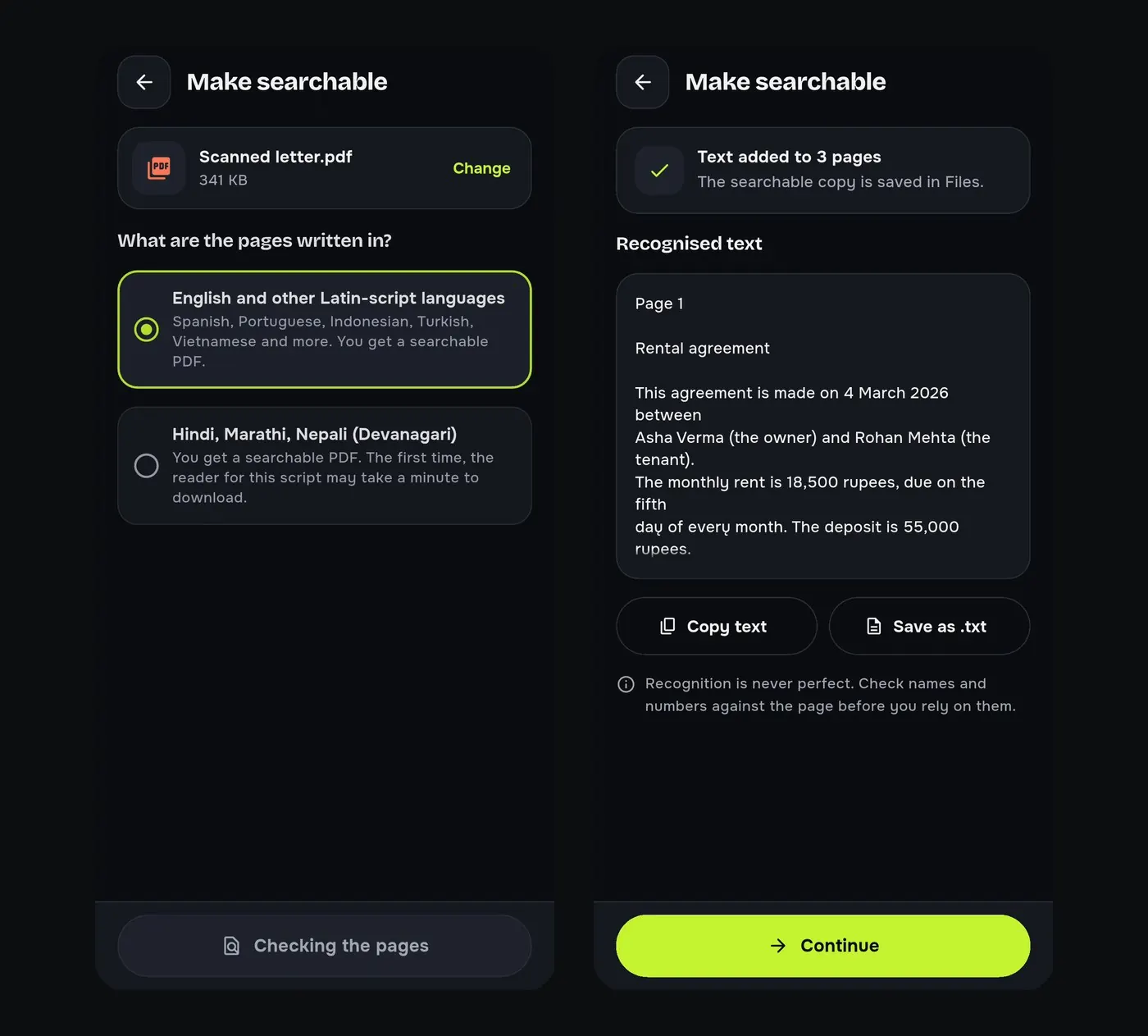
You try to copy a sentence from a scanned agreement and nothing gets selected. That is because a scan is an image. Text recognition (OCR) reads the letters and turns them into real text you can search, select and copy.
Steps to make a scanned PDF searchable
- Go to Tools → Make searchable and choose the scanned PDF.
- Pick the language of the pages: English and other Latin-script languages, or Hindi, Marathi and Nepali (Devanagari).
- Wait while the pages are read; you see “Text added to 3 pages” when it is done.
- Tap Copy text or Save as .txt. The searchable PDF is saved in Files.
OCR in Hindi
Hindi, Marathi and Nepali need a one-time download the first time; after that recognition works offline. Choose the Devanagari option before you start, because the app reads the script you pick.
Tips for better recognition
- Use sharp, straight photos with good light; Scan to PDF straightens pages for you.
- Check names and numbers against the page: recognition is never perfect.
- Crop away dark borders with Crop before recognising.
What you can do with the text
- Search inside the scan with the reader’s search.
- Paste it into WhatsApp, an e-mail or a document, or convert to Word.
- Translate it, or find the dates and amounts in it.
Try it on your phone. PDF Tools is free, works offline and needs no account.

Frequently asked questions
Can I copy text from a scanned PDF on my phone?
Yes. Run Make searchable in PDF Tools, then tap Copy text.
Does the OCR support Hindi?
Yes: Hindi, Marathi and Nepali (Devanagari), plus English and other Latin-script languages.
Does OCR need internet?
Only once, to download the Devanagari model. English works offline from the start.
Are my scans uploaded?
No. Recognition runs on your phone.
Everything PDF Tools can do
More than 40 tools in one free app, on phones and tablets, in 10 languages. Your files are processed on your phone and never uploaded to our servers.
- Edit: edit PDF text, find and replace, images, shapes, drawing, highlight, links, bookmarks, redact.
- Fill and sign: fill forms, saved details, make a form, sign, certificate signature, stamps and dates, flatten.
- Pages: organise, merge, split, rotate, crop, resize, pages per sheet, page numbers, watermark.
- Convert and scan: scan to PDF, images to PDF, ID card to PDF, OCR, QR scanner and maker, business card to contact, PDF to Word, Word to PDF, PDF to JPG, PDF to text, web page to PDF.
- Protect and shrink: compress PDF, compress photo, black and white, add or remove password, clean hidden data.
- Read, compare and find: reader with night mode, read aloud, translate, compare PDFs, find dates and amounts, print.
- Files and privacy: folders, favourites, recycle bin, app lock, search inside files, batch mode.
See every feature in detail or get PDF Tools on Google Play.
Related guides
How to convert a PDF to Word on Android
Turn a PDF into an editable Word (.docx) file on your Android phone, free and offline, and learn what a PDF to Word conversion keeps and what it does not.
Read and compareHow to translate a PDF on your Android phone
Translate the text of a PDF into Hindi, English and other languages on your Android phone. After a one-time download it works offline.
Read and compareHow to find every date, amount and phone number in a PDF
List the dates, amounts, phone numbers and e-mails in a long PDF on your Android phone, with the sentence each one came from. Save them as .txt or .csv.