How to add a watermark or a PAID stamp to a PDF
By Toolverse Labs, makers of PDF Tools · · 2 min read
Quick answer
To add a watermark to a PDF on Android, open PDF Tools, go to Tools → Watermark, type the text or pick an image, set colour, position, opacity, size and angle, and tap Add watermark. For a stamp, open the PDF and choose Stamp.
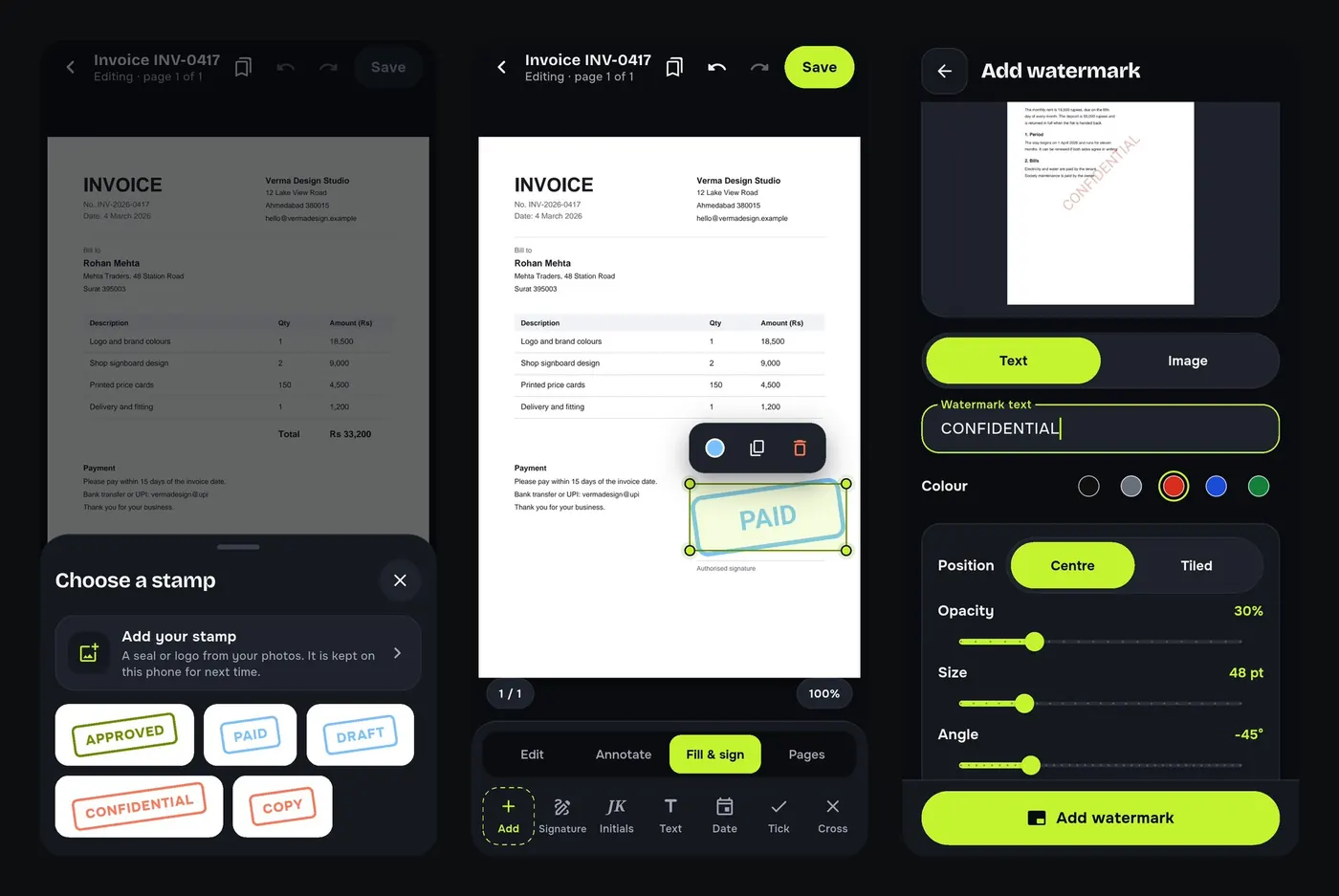
Small businesses send and receive dozens of invoices. A clear PAID stamp ends the “did they pay?” question, and a watermark keeps a draft from being mistaken for the final version.
Add a stamp to a page
- Open the PDF in the editor and tap Add.
- Choose Stamp: Approved, Paid, Draft, Confidential or Copy. Or tap Add your stamp to use your logo or seal from a photo.
- Drag it into place, resize it and tap Save.
Add a watermark to every page
- Go to Tools → Watermark and choose the PDF.
- Type the text, for example CONFIDENTIAL, or pick an image.
- Choose the colour, Centre or Tiled, the opacity, size and angle, and watch the preview.
- Tap Add watermark.
Highlight and comment
On the Annotate tab, Highlight marks text in yellow, green, pink or blue, and Underline, Note and Arrow help you review a document before you send it back.
Related: sign the invoice or add page numbers.
Try it on your phone. PDF Tools is free, works offline and needs no account.

Frequently asked questions
How do I put a PAID stamp on an invoice PDF?
Open the PDF in PDF Tools, tap Add, choose Stamp and pick Paid.
Can I use my own logo as a stamp or watermark?
Yes. Add your stamp from a photo, or pick an image in Watermark.
Can the watermark cover every page?
Yes. Watermark adds it to every page, centred or tiled.
Is it free?
Yes, with no app watermark of its own added.
Everything PDF Tools can do
More than 40 tools in one free app, on phones and tablets, in 10 languages. Your files are processed on your phone and never uploaded to our servers.
- Edit: edit PDF text, find and replace, images, shapes, drawing, highlight, links, bookmarks, redact.
- Fill and sign: fill forms, saved details, make a form, sign, certificate signature, stamps and dates, flatten.
- Pages: organise, merge, split, rotate, crop, resize, pages per sheet, page numbers, watermark.
- Convert and scan: scan to PDF, images to PDF, ID card to PDF, OCR, QR scanner and maker, business card to contact, PDF to Word, Word to PDF, PDF to JPG, PDF to text, web page to PDF.
- Protect and shrink: compress PDF, compress photo, black and white, add or remove password, clean hidden data.
- Read, compare and find: reader with night mode, read aloud, translate, compare PDFs, find dates and amounts, print.
- Files and privacy: folders, favourites, recycle bin, app lock, search inside files, batch mode.
See every feature in detail or get PDF Tools on Google Play.
Related guides
How to sign a PDF on your phone without printing it
Add your signature to a PDF on your Android phone: draw or type it, place it on the page and share the signed file. Free and offline, no printer or scanner.
EditHow to edit the text of a PDF on your Android phone
Change words, dates and names inside a PDF on your Android phone. Retype a line or find and replace a word, free and offline, without a computer.
PrintHow to print 2 or 4 pages per sheet from your phone
Save paper and money: put 2 or 4 PDF pages on one sheet, make a black and white copy and add page numbers on your Android phone before printing.