How to make a Wi-Fi QR code on your phone
By Toolverse Labs, makers of PDF Tools · · 2 min read
Quick answer
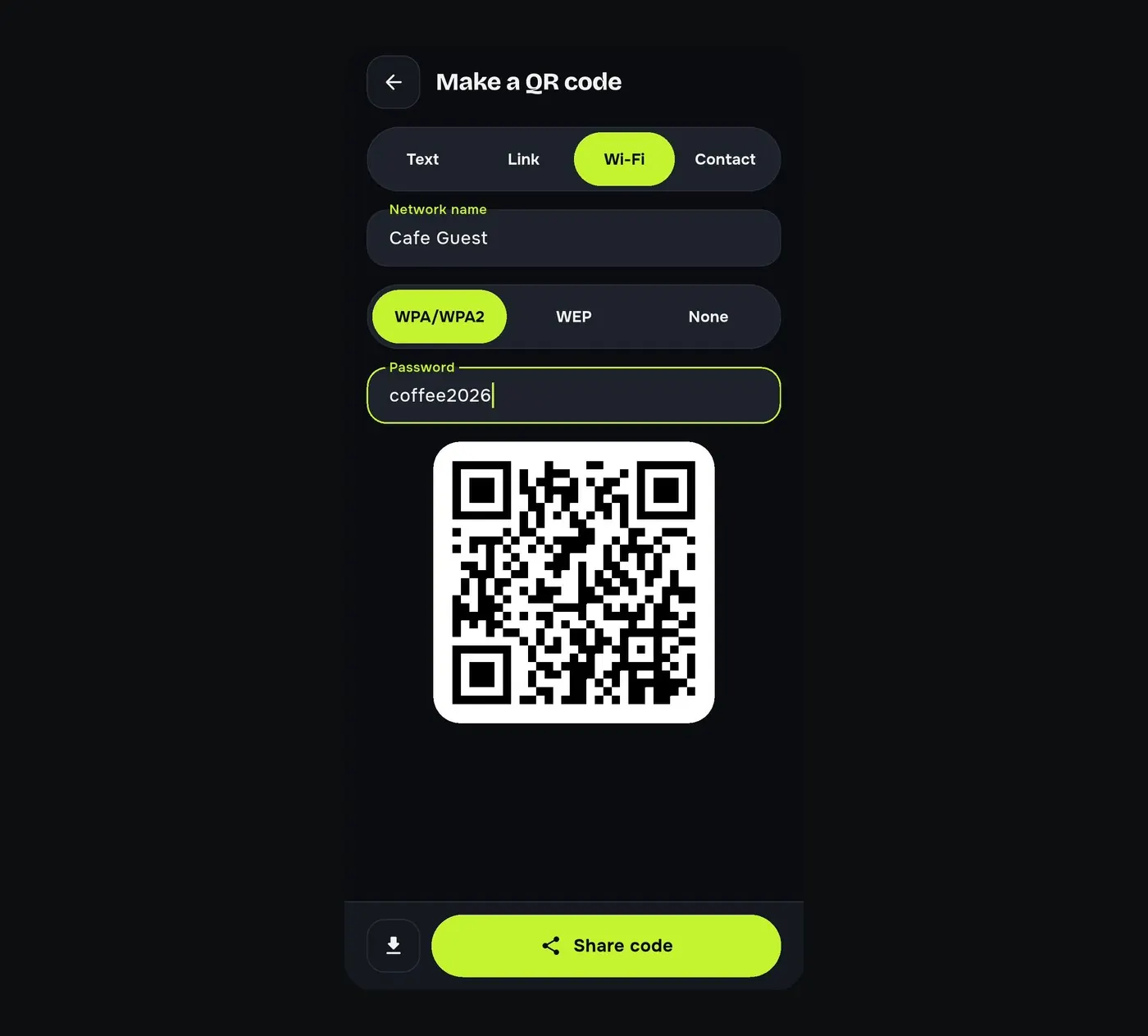
To make a Wi-Fi QR code on Android, open PDF Tools, go to Tools → Make a QR code, choose Wi-Fi, type the network name, pick the security (WPA/WPA2, WEP or None), type the password, and tap Share code to print or send it.
“What’s the Wi-Fi password?” A shop, a café or a home with guests hears it every day. With a Wi-Fi QR code people point their camera and join, without typing a long password.
Steps to create a Wi-Fi QR code
- Go to Tools → Make a QR code.
- Choose Wi-Fi.
- Type the network name, pick the security (WPA/WPA2, WEP or None) and type the password.
- The code appears straight away. Tap Share code to send or print it.
Other QR codes
- Link: your website, menu or Google review page.
- Text: any short message.
- Contact: your phone number and e-mail, saved straight to the scanner’s contacts.
Scan QR codes too
The same app scans QR codes and barcodes with the camera or from a photo, and turns a photo of a business card into a phone contact.
Try it on your phone. PDF Tools is free, works offline and needs no account.

Frequently asked questions
How do I share my Wi-Fi password with a QR code?
Make a Wi-Fi QR code in PDF Tools and let guests scan it with their camera.
Do guests need an app to scan it?
No. Most phone cameras read Wi-Fi QR codes directly.
Can I print the QR code?
Yes. Tap Share code and print or save the image.
Is the QR code generator free?
Yes.
Everything PDF Tools can do
More than 40 tools in one free app, on phones and tablets, in 10 languages. Your files are processed on your phone and never uploaded to our servers.
- Edit: edit PDF text, find and replace, images, shapes, drawing, highlight, links, bookmarks, redact.
- Fill and sign: fill forms, saved details, make a form, sign, certificate signature, stamps and dates, flatten.
- Pages: organise, merge, split, rotate, crop, resize, pages per sheet, page numbers, watermark.
- Convert and scan: scan to PDF, images to PDF, ID card to PDF, OCR, QR scanner and maker, business card to contact, PDF to Word, Word to PDF, PDF to JPG, PDF to text, web page to PDF.
- Protect and shrink: compress PDF, compress photo, black and white, add or remove password, clean hidden data.
- Read, compare and find: reader with night mode, read aloud, translate, compare PDFs, find dates and amounts, print.
- Files and privacy: folders, favourites, recycle bin, app lock, search inside files, batch mode.
See every feature in detail or get PDF Tools on Google Play.
Related guides
How to convert JPG to PDF and PDF to JPG on Android
Turn photos, receipts and notes into one PDF, or save every page of a PDF as a JPG, on your Android phone. Free, offline and without watermarks.
OverviewA free, offline PDF editor app for Android
PDF Tools puts more than 40 PDF tools in one free Android app: edit, sign, scan, convert, compress and organise PDFs offline, without an account or watermark.
EditHow to add a watermark or a PAID stamp to a PDF
Stamp invoices as PAID, add a CONFIDENTIAL watermark to every page and highlight text in a PDF on your Android phone. Free, offline, your own logo too.