How to password protect a PDF on Android
By Toolverse Labs, makers of PDF Tools · · 2 min read
Quick answer
To password protect a PDF on Android, open PDF Tools, tap Lock (or Tools → Add password), choose the PDF, type and repeat a password, choose what people may do, and tap Protect PDF.
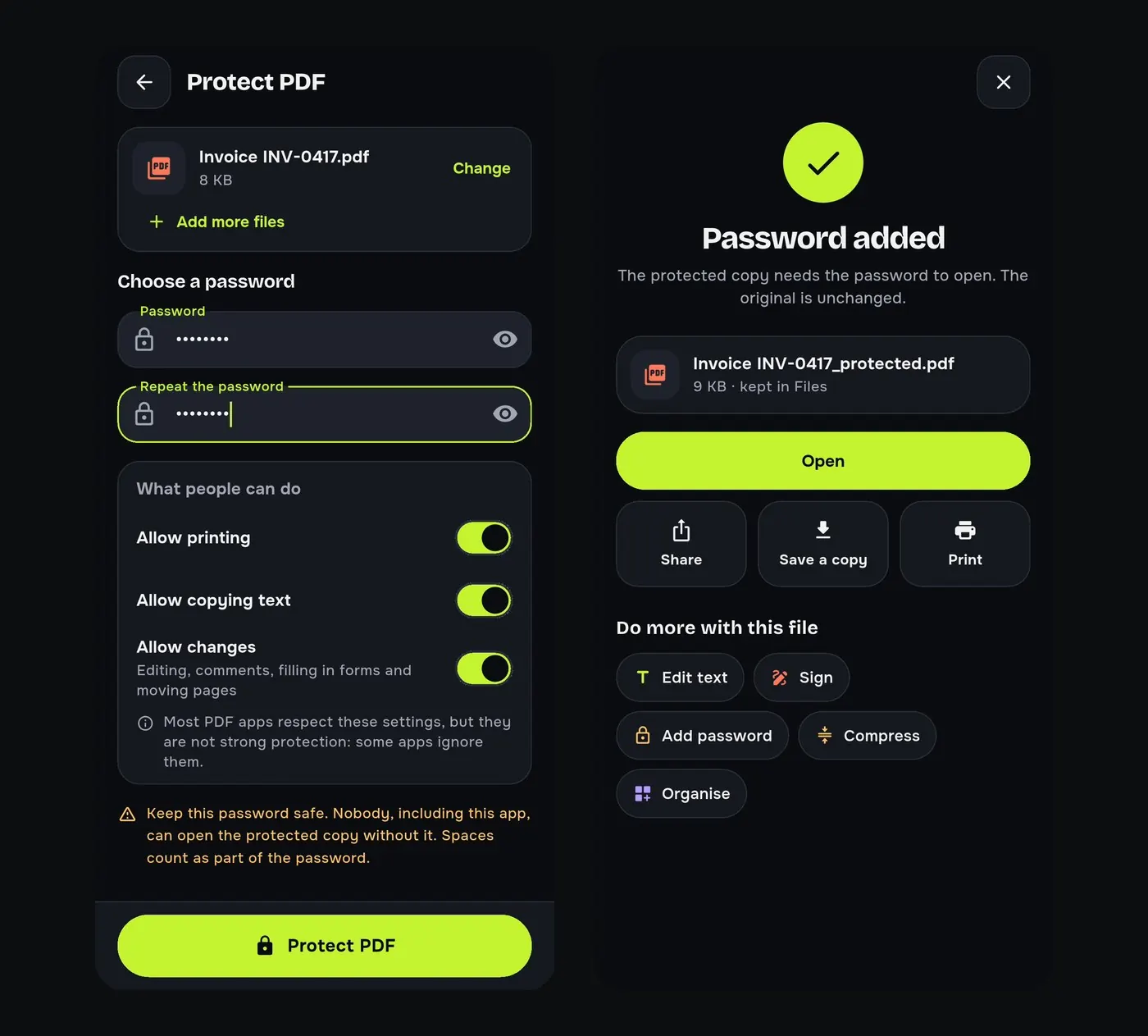
Salary slips, bank statements and ID copies should not be readable by anyone who finds them in a chat or an inbox. A PDF password means only someone who knows it can open the file.
Steps to add a password to a PDF
- Tap Lock under Quick tools, or go to Tools → Add password.
- Choose the PDF, type a password and repeat it.
- Under What people can do, switch printing, copying text and changes on or off.
- Tap Protect PDF. A protected copy is made; the original is unchanged.
Send the password separately, for example by phone call or another app, not in the same message as the file.
Remove a password from a PDF
Remove password makes an unlocked copy of a PDF whose password you know, which is handy for bank statements you open often.
Good to know
- Keep the password safe. Nobody, including this app, can open the protected copy without it.
- Most PDF apps respect the print and copy settings, but not all do; the password is what keeps the file closed.
- To lock the whole app, turn on App lock in Settings (fingerprint, face or screen lock).
- For details inside the document, redact them before sharing.
Try it on your phone. PDF Tools is free, works offline and needs no account.

Frequently asked questions
How do I lock a PDF with a password on my phone?
In PDF Tools tap Lock, choose the PDF, set a password and tap Protect PDF.
Can I stop people printing or copying my PDF?
Yes. Turn off printing and copying text when you add the password.
I forgot the password. Can the app open it?
No. Nobody can open the protected copy without the password; keep the original.
Can I remove a PDF password?
Yes, with Remove password, if you know the password.
Everything PDF Tools can do
More than 40 tools in one free app, on phones and tablets, in 10 languages. Your files are processed on your phone and never uploaded to our servers.
- Edit: edit PDF text, find and replace, images, shapes, drawing, highlight, links, bookmarks, redact.
- Fill and sign: fill forms, saved details, make a form, sign, certificate signature, stamps and dates, flatten.
- Pages: organise, merge, split, rotate, crop, resize, pages per sheet, page numbers, watermark.
- Convert and scan: scan to PDF, images to PDF, ID card to PDF, OCR, QR scanner and maker, business card to contact, PDF to Word, Word to PDF, PDF to JPG, PDF to text, web page to PDF.
- Protect and shrink: compress PDF, compress photo, black and white, add or remove password, clean hidden data.
- Read, compare and find: reader with night mode, read aloud, translate, compare PDFs, find dates and amounts, print.
- Files and privacy: folders, favourites, recycle bin, app lock, search inside files, batch mode.
See every feature in detail or get PDF Tools on Google Play.
Related guides
How to redact a PDF on Android
Black out phone numbers, e-mails, account numbers and names in a PDF on your Android phone and remove them for good, not just cover them. Free and offline.
PagesHow to merge PDF files on your Android phone
Combine two or more PDFs into one file on your Android phone, in the order you choose. Free, offline, no upload: ideal for single-file application forms.
CompressHow to compress a PDF to 200 KB on your phone
Reduce a PDF to under 200 KB, 100 KB or any size limit for job, exam and government forms, right on your Android phone. Free, offline, no upload.