How to merge PDF files on your Android phone
By Toolverse Labs, makers of PDF Tools · · 2 min read
Quick answer
To merge PDFs on Android, open PDF Tools, tap Merge, tap Choose PDFs and select the files, drag them into order, then tap Merge and name the result. The originals are not changed.
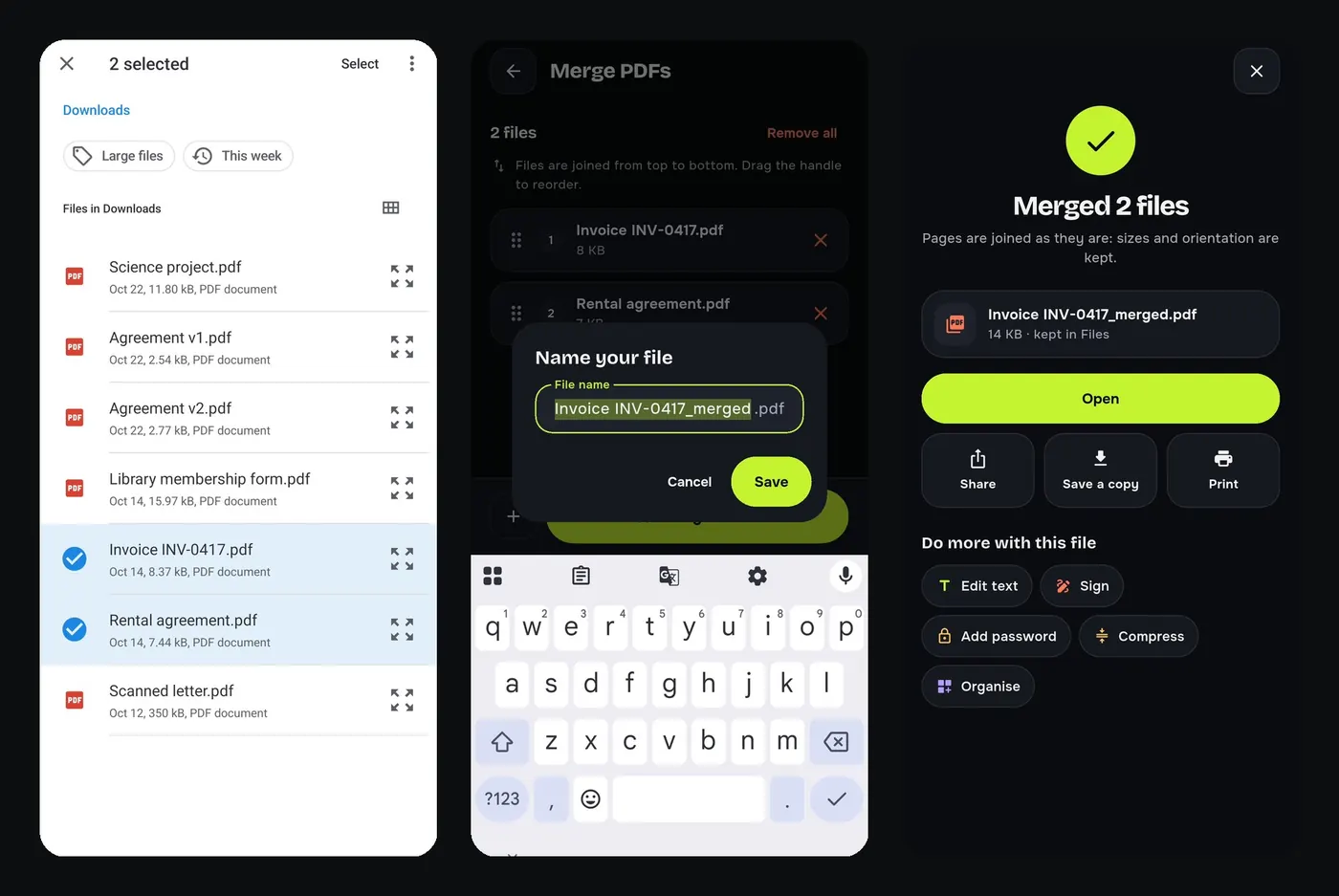
Many application forms accept only one file: “upload all documents as a single PDF”. Merging on a phone used to mean a website that uploads your ID and marksheets to someone else’s server. PDF Tools merges them on your phone.
Steps to combine PDF files
- Open PDF Tools and tap Merge under Quick tools.
- Tap Choose PDFs and select two or more files.
- Drag the handles to put them in order; they are joined from top to bottom.
- Tap Merge, name the new file and tap Save.
You can also start from the Files tab: long-press one PDF, tap the others and choose Merge.
Merge photos and PDFs together
Have a mix of photos and PDFs? Turn the photos into a PDF first with Images to PDF, then merge everything.
After merging
- Compress the merged file to fit an upload limit.
- Organise its pages: reorder, rotate or delete.
- Add a password before you send it.
Good to know
- Pages are joined as they are: their sizes and orientation are kept.
- The original files are not changed.
- Merging happens on your phone; nothing is uploaded.
Try it on your phone. PDF Tools is free, works offline and needs no account.

Frequently asked questions
How do I combine PDF files on my phone?
In PDF Tools tap Merge, choose the PDFs, set the order and tap Merge.
Is there a limit on how many PDFs I can merge?
You can merge two or more files; very large files take longer on older phones.
Does merging reduce quality?
No. Pages are joined as they are. Compress the result separately if it is too big.
Can I merge PDFs offline?
Yes. Merging works without internet.
Everything PDF Tools can do
More than 40 tools in one free app, on phones and tablets, in 10 languages. Your files are processed on your phone and never uploaded to our servers.
- Edit: edit PDF text, find and replace, images, shapes, drawing, highlight, links, bookmarks, redact.
- Fill and sign: fill forms, saved details, make a form, sign, certificate signature, stamps and dates, flatten.
- Pages: organise, merge, split, rotate, crop, resize, pages per sheet, page numbers, watermark.
- Convert and scan: scan to PDF, images to PDF, ID card to PDF, OCR, QR scanner and maker, business card to contact, PDF to Word, Word to PDF, PDF to JPG, PDF to text, web page to PDF.
- Protect and shrink: compress PDF, compress photo, black and white, add or remove password, clean hidden data.
- Read, compare and find: reader with night mode, read aloud, translate, compare PDFs, find dates and amounts, print.
- Files and privacy: folders, favourites, recycle bin, app lock, search inside files, batch mode.
See every feature in detail or get PDF Tools on Google Play.
Related guides
How to split a PDF and delete pages on Android
Extract the pages you need from a PDF, delete blank pages, reorder and rotate pages on your Android phone. Free and offline, the original stays untouched.
CompressHow to compress a PDF to 200 KB on your phone
Reduce a PDF to under 200 KB, 100 KB or any size limit for job, exam and government forms, right on your Android phone. Free, offline, no upload.
ConvertHow to convert JPG to PDF and PDF to JPG on Android
Turn photos, receipts and notes into one PDF, or save every page of a PDF as a JPG, on your Android phone. Free, offline and without watermarks.